ChatGPT Image Editing: What Changes When DALL·E Retires
ChatGPT image editing has quietly become a different product, and there’s a deadline attached. On 30 August 2026, OpenAI is retiring the official DALL·E GPT from ChatGPT, and its own help documentation tells users to download any images they want to keep before that date.
If you’ve generated images through the DALL·E GPT over the past couple of years, that’s an action item with five weeks on the clock. Below: exactly what’s disappearing, what replaces it, how the new conversational editor actually works, and the limitations OpenAI admits to in its own docs but the coverage tends to skip.
The August 30 deadline, precisely
What’s retiring is the official DALL·E GPT, the separate assistant you’d open from the GPT list. Two things are explicitly not affected: user-created GPTs with image generation enabled keep working, and image generation inside ChatGPT continues through the newer system.
The practical risk is your archive. Images generated inside DALL·E GPT conversations live in those conversations, so download anything you want before the end of August. Worth doing this week rather than on the 29th, because bulk-saving a couple of years of generations is slower than it sounds.
What replaces it
ChatGPT Images 2.0, built on the gpt-image-2 model released in April 2026, is now the image system across ChatGPT. Notable differences from what DALL·E users are used to:
- Available on all tiers, including free accounts.
- Reasoning built in. “Images with thinking” is available on Plus, Pro, and Business plans, with Enterprise and Edu listed as coming soon.
- Meaningfully better text rendering, which matters if you’ve ever tried to get readable words into a generated image.
- Aspect ratio control through a picker or by naming the ratio in your prompt, rather than being stuck with square defaults.
- Transparent backgrounds on request, which removes a step for anyone making logos or overlays.
- Automatic library. Everything you create is saved under Images on web and mobile.
Editing is the real shift though, and it’s why this is more than a model upgrade.
How ChatGPT image editing actually works
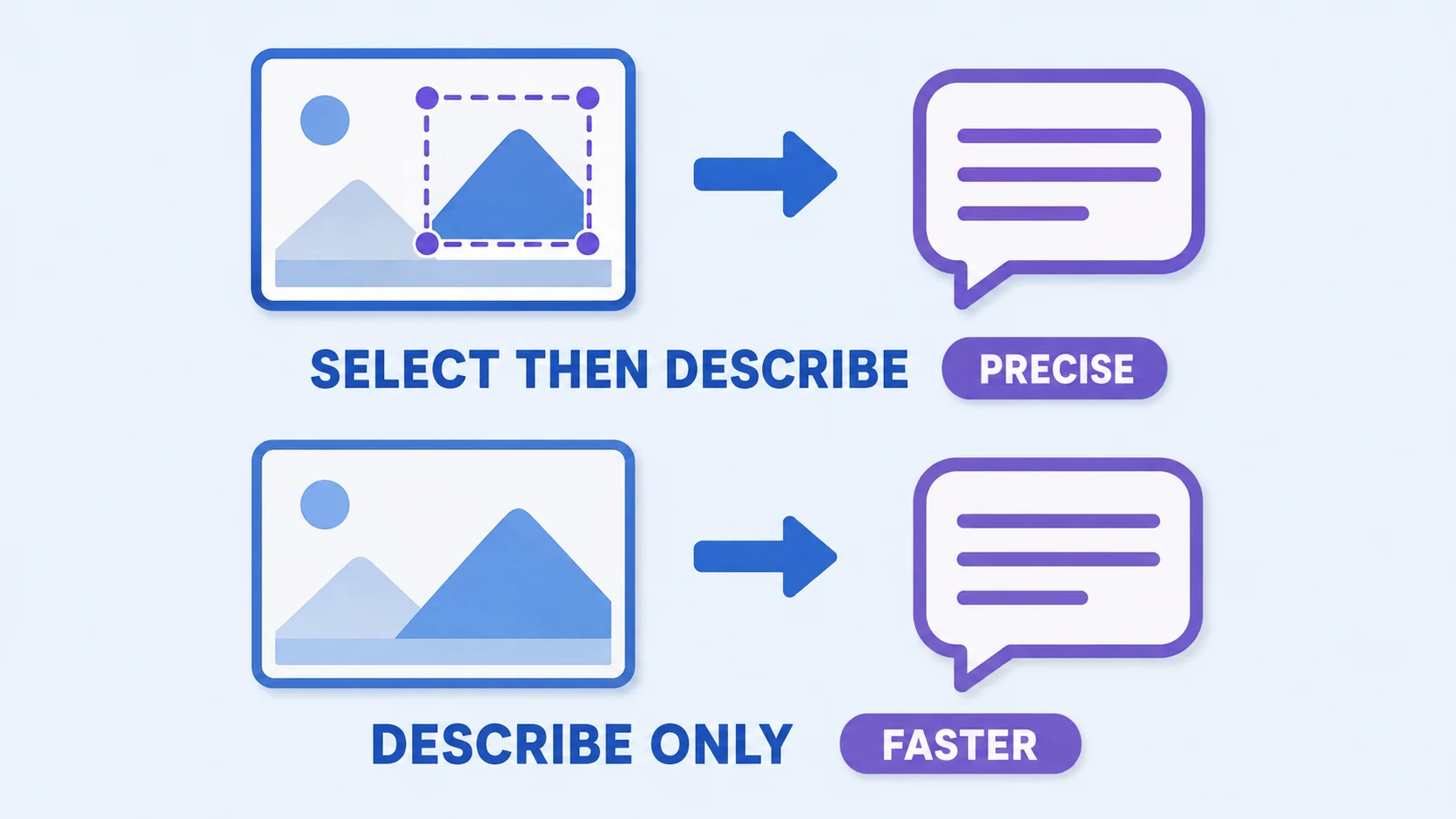
You can now upload an existing photo, not just images you generated, and change it by describing what you want. There are two modes:
- Selection-based. Open the image in the editor, use the Select tool to highlight an area, then describe the change in chat. Undo and Redo let you refine the selection before committing.
- Conversational. Skip the selection entirely and describe the edit in the conversation panel. The model works out where to apply it, which is faster but broader.
The editor itself is deliberately minimal: Select, Aspect ratio, Undo, Redo, Cancel, Save. On mobile you tap an image to open the editor, choose Edit to describe changes, or Select to highlight an area with a size slider before describing what should happen there.
The interesting part is the interaction model. This is editing as conversation: make one change, look at it, ask for the next. It suits people who know what they want but not which tool would do it, which is a large group that traditional editors have never served well.
The limitations OpenAI admits (and the ones it doesn’t)
To OpenAI’s credit, the documentation is candid about the main weakness: “Highlights are not always precise, and edits may extend beyond the area you selected.” That’s a significant caveat for anyone expecting mask-level control. You are describing intent, not defining boundaries, and the model decides how far the change travels.
Three more constraints worth knowing before you build a workflow on it:
- Deleting an image means deleting the conversation. There’s no per-image delete in the library; you remove the chat that produced it. Awkward if one conversation contains work you want and work you don’t.
- Generation isn’t instant. The docs note images can take a few minutes depending on complexity, though you can keep using ChatGPT while it works.
- No exact specifications. You can request an aspect ratio, but not “exactly 2000 × 2000 px, under 1 MB, sRGB.” For anything with hard requirements, like marketplace product images, this remains an editor’s job.
Writing edit instructions that actually work
Conversational editing rewards a different kind of instruction than image generation does. When you generate, you describe a destination. When you edit, you describe a change, and the model has to work out what stays untouched. Four habits make that reliable:
- Name what shouldn’t change. “Replace the background with a plain grey studio wall, keeping the subject, lighting, and shadows exactly as they are” outperforms “put her on a grey background,” because the second leaves the model free to reinterpret the person too.
- One change per message. Batched requests (“remove the cup, brighten it, and make it square”) produce compromises. Sequential edits let you keep what worked and retry only what didn’t, which is the whole advantage of the conversational model.
- Anchor edits to visible landmarks. “The cable on the left edge of the desk” beats “the cable,” especially given that selections spill. Describing position narrows the blast radius even when your highlight doesn’t.
- Say what the result should look like, not what tool to use. “Make the shadows softer, as if lit through a window” works; “apply a 40% feather with reduced contrast” doesn’t, because there are no sliders behind the curtain.
When an edit goes wrong, resist the urge to correct it with another edit on top. Two or three stacked corrections usually drift further from the original than starting again from the source image, the same principle behind not re-editing AI artifacts indefinitely: at some point regenerating beats repairing.
Where it fits your workflow
The honest summary: ChatGPT image editing is excellent at “make this look different” and poor at “make this exactly right.” Those are different jobs, and most projects need both.
|
Task |
Best tool |
Why |
|
Change a background or scene |
ChatGPT |
Describing beats masking |
|
Remove an unwanted object |
ChatGPT |
Generative fill handles it well |
|
Resize to an exact pixel spec |
Editor |
Deterministic, repeatable |
|
Compress to a file-size target |
Editor |
You need a number, not a guess |
|
Crop, straighten, adjust color |
Editor |
Seconds, with no re-rolls |
|
Batch the same change across 50 files |
Editor |
Conversation doesn’t scale |
|
Add grain or a film treatment |
Editor |
Consistent across a set |
The pattern that works: use ChatGPT for the creative transformation, then finish in an editor for the specifications. Generate or alter the scene, then crop, resize, compress, and export to whatever the destination demands. We covered that division in more depth in AI generators versus photo editors, and the arrival of conversational editing sharpens rather than changes it.
Finish the job with exact control
Crop, resize, compress, and export to spec. Free, in your browser, no re-rolls.
Open the ArtsFlick Photo EditorOne more consideration, given how audiences are responding to AI polish: the easier conversational editing becomes, the more heavily edited images will flood every feed, and the more valuable visibly real photography becomes. Use the tool, but don’t let everything you publish look like everyone else’s output.