How to Fix AI Image Artifacts (Hands, Text, Plastic Skin)
The fastest way to fix AI image artifacts is knowing which ones are worth fixing. Some glitches take thirty seconds in an editor. Others will eat an hour of your evening when a fresh generation with a better prompt would have solved it in one click. This guide teaches you to tell them apart.
It’s also overdue for an update most articles haven’t made. The horror-show hands of 2023 are mostly gone; today’s models fail more quietly, with skin like plastic, shadows that answer to no light source, and textures that repeat like wallpaper. Below: why generators glitch at all, a catalog of what actually breaks in 2026, and three repair strategies matched to each problem.
Why AI images glitch at all
Image generators don’t know what a hand is. They know what hands statistically look like across billions of examples, and when the examples disagree, the model hedges. Hands are the textbook case: fingers overlap, foreshorten, and hide behind objects, so the “statistically plausible” answer sometimes has six fingers. Text fails for the same reason at the character level; the model paints letter-shaped strokes rather than spelling. (The mechanics of diffusion models explain the hedging well if you want the deeper story.)
The practical takeaway: artifacts aren’t random damage, they’re the model’s uncertainty made visible. That’s why they cluster in predictable places, and why predictable places can be checked in seconds.
The 2026 artifact catalog: what breaks and how to spot it
Hands and fingers
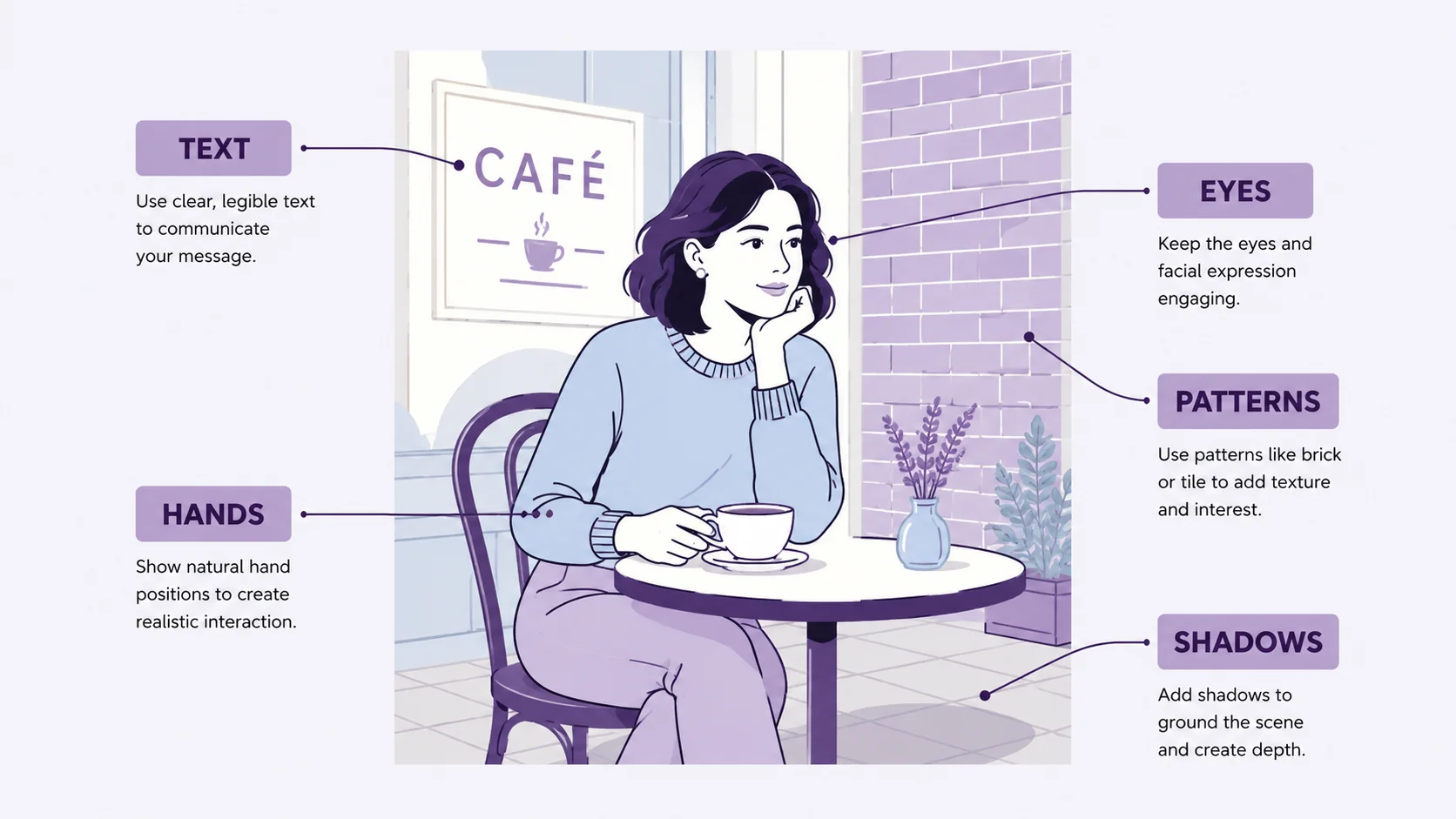
Much improved since the six-finger era, but still the first place to look, especially with multiple people, interlocked hands, or hands holding objects. Count fingers, check that thumbs attach on the correct side, and look where hand meets object: grips that melt into cups and handles are the modern version of the problem.
Text and signage
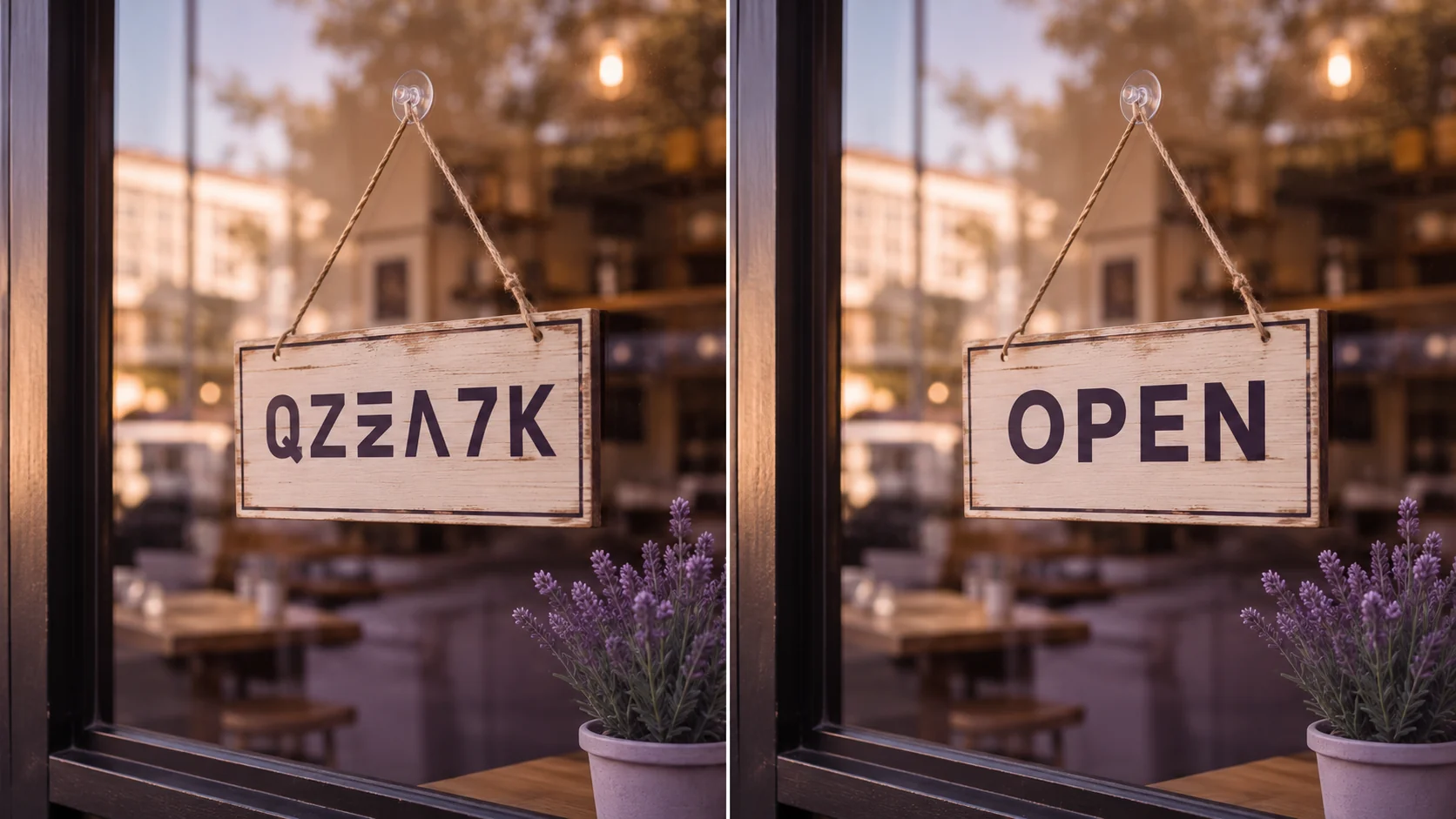
Top-tier models can now render short, deliberate text you asked for. What still fails is background text you didn’t ask for: shop signs, book spines, labels, and posters filled with letter-shaped gibberish. Any text you didn’t explicitly prompt is guilty until proven readable.
Plastic skin
The signature 2026 artifact. Faces render technically perfect but airbrushed into wax: no pores, no fine lines, no texture variation. Individually subtle, it’s the single strongest “this is AI” signal for most viewers, and it’s also one of the easiest to treat in an editor.
Eyes, teeth, and ears
Zoom in. Mismatched pupil sizes or reflections, teeth that blur into a single band, earrings that don’t match or merge into the ear. Small-area details get less of the model’s attention, and jewelry, glasses, and teeth are where that shows.
Backgrounds, patterns, and physics
The background is where models relax: fences that change style midway, brick and fabric patterns that repeat in visible tiles, and above all lighting physics. Shadows falling in two directions, reflections showing the wrong scene, a sunset scene lit from the left. Viewers rarely name the problem, but they feel it.
Artifact-to-fix cheat sheet
|
Artifact |
Telltale sign |
Fastest fix |
|
Wrong hands |
Finger count, melted grips |
Inpaint the hand region, or crop/reframe it out |
|
Garbled text |
Letter-shaped gibberish in background |
Patch over it, or inpaint with the exact wording |
|
Plastic skin |
No pores, airbrushed shine |
Editor: add subtle grain, pull highlights down |
|
Eye/teeth oddities |
Mismatched pupils, blurred teeth |
Inpaint the face region only |
|
Impossible shadows |
Two light directions |
Regenerate; lighting can’t be patched convincingly |
|
Repeating patterns |
Visible texture tiles |
Crop tighter, or blur the background zone |
Three ways to fix AI image artifacts, from cheapest to most control
1. Regenerate with a better prompt
The cheapest fix is a new generation that avoids the problem. Be specific where the model hedged: “hands resting flat on the table, fingers visible” beats hoping. If your generator supports negative prompts, exclude the failure directly (“extra fingers, merged fingers, distorted hands”). And when a scene doesn’t need hands or background text at all, prompt them out of frame; the artifact you prevent costs nothing.
2. Inpaint only the broken region
When the composition is worth keeping, inpainting (selecting the broken area and regenerating just that region with a corrective prompt) preserves everything you like. It’s the highest-success route for hands, faces, and deliberate text, and two or three attempts on the region usually lands a clean result.
3. Finish by hand in an editor
The last mile is classic editing, and it handles what regeneration can’t or shouldn’t:
- Crop and reframe. The most underrated fix: if the artifact lives at the edge, recompose it out entirely. Our resizing guide covers keeping quality while you do.
- Patch and blur. Garbled background text and repeating textures disappear under a soft targeted blur that reads as depth of field.
- Kill the plastic. Add fine grain, reduce highlight shine, and nudge color balance away from uniform warmth. Thirty seconds in the ArtsFlick photo editor, and skin reads as skin again.
- Export properly. Heavy compression amplifies AI’s smooth-gradient banding, so follow sane format and quality settings on the way out.
Polish AI images in your browser, free
Crop, grain, blur, and color tools that turn “almost right” into publishable.
Try the ArtsFlick Photo EditorPrevention: the artifacts you never have to fix
The cheapest way to fix AI image artifacts is to stop ordering them. A surprising share of glitches are invited by vague prompts, and four habits prevent most of them:
- Give hands something to do. “Hands in coat pockets”, “holding a coffee cup with both hands”, “arms crossed”. Specified poses collapse the model’s uncertainty, and uncertainty is where fingers multiply.
- Ask for shallow depth of field. A softly blurred background hides the places models get sloppy: signage, crowds, repeating textures. What’s out of focus can’t be garbled.
- Say “no text” when you don’t need text. Incidental signage is the most common giveaway artifact, and it’s entirely optional. If you do need words, prompt the exact wording and keep it short.
- Name the light. “Lit by one window from the left” gives shadows a single story to tell. Unspecified lighting is how you get the two-suns look that can’t be patched afterward.
Prevention won’t catch everything, which is why the inspection zones exist. But a specific prompt plus a thirty-second five-zone check will beat an hour of repair on most images.
When to stop fixing and regenerate
Repair has a budget. The composition-level problems (impossible lighting, warped anatomy across the whole body, a background that’s wrong everywhere) sit below any patch you can apply, and an hour of fighting them produces something that still feels off.