Best Free Photo Editors With No Watermark in 2026 (Tested)
Hunting for the best free photo editors with no watermark got trickier in 2026, because the watermark moved. Most free tiers stopped stamping ordinary edits years ago; what they stamp now is AI features, credits, and premium assets, usually discovered at the exact moment you hit export. So “free, no watermark” depends entirely on what you’re doing in the tool.
We checked the current free tiers of the big browser editors, noted exactly where each one draws its watermark line, and ranked them by job rather than by hype. Policies change often in this market, so treat this as accurate for July 2026 and glance at a tool’s pricing page before you build a workflow on it.
How we judged (and our bias, declared)
Full disclosure up front: ArtsFlick is our own editor, and it’s in this list. We’ve kept its entry to the same format as everyone else’s, cons included, and the other tools get genuine credit where they earn it, because a roundup you can’t trust is worthless to you and, frankly, to us. The criteria: what the free tier actually lets you export unstamped, whether you need an account, how it handles the everyday jobs (crop, color, text, filters), and what its ceiling is.
Where watermarks hide in 2026
The pattern across the market is consistent enough to state as a rule: basic editing is watermark-free almost everywhere; AI features are where the stamp lives. Canva’s and Fotor’s free tiers watermark AI-feature exports. Pixlr’s free plan allows a handful of AI edits per day, watermarked. Picsart stamps AI output unless you upgrade. Background-removal specialist tools commonly watermark all free exports.
Which means the question isn’t “does this editor watermark?” but “does the thing I need touch AI credits or premium assets?” Crop a photo, fix the colors, add text: safe nearly everywhere. One-click AI magic: that’s the paywall’s doorbell.
The best free photo editors with no watermark, tested
ArtsFlick (yes, ours)
Browser-based editor covering the everyday jobs: crop, resize, filters, text, layers, plus format conversion tools for the PNG-to-JPG chores. No watermark on exports, no install, and processing happens in your browser, which means photos never sit on our servers; for IDs, contracts, or unreleased work, that’s a real difference rather than a marketing line.
The honest cons, in the same spirit we grade everyone else: the free tier has usage limits, and this is a lighter tool than a Photoshop clone. If you need advanced masking, RAW processing, or frequency separation, it isn’t that and doesn’t pretend to be. Where it wins is speed: open tab, fix photo, export clean, close tab. Judge it against the rest of the list at artsflick.com/photo-editor.
Photopea
The closest thing to free Photoshop in a browser tab, and it isn’t close: layers, masks, blend modes, smart objects, and real PSD import/export, with no watermark anywhere and no account required. Photopea funds all this with an ad panel beside the workspace, which you stop noticing within minutes.
The cost is the learning curve, which matches its power exactly. This is a manual tool that assumes you know what a curves adjustment is and why you’d feather a selection; there’s no one-click “make it better” here. For deep retouching on zero budget, it’s the benchmark the rest of the market gets measured against, and the reason “free editor” doesn’t have to mean “toy”.
Canva (free tier)
Calling Canva a photo editor undersells what it is: a design platform with photo editing inside it. For template-driven work (social posts, presentations, flyers with your photo dropped in), nothing here matches its library or its speed from blank page to finished graphic.
The watermark line on the free tier: ordinary design exports are clean, while premium elements and AI-feature exports carry the stamp. The practical trap is discovering an element was premium at export time, so if clean freebies matter, filter to free elements as you design. As a pure photo editor it’s mid-pack; as a “photo plus text plus brand kit” machine it’s untouchable.
Pixlr
Pixlr occupies the sensible middle: more capable than one-click enhancers, friendlier than Photopea, wrapped in a genuinely pleasant modern interface. Layers, retouch tools, and a solid filter set cover most everyday editing without the intimidation factor.
Its free plan’s constraint is the AI allowance: a handful of AI edits per day, watermarked. Manual editing exports cleanly, so Pixlr works well as a daily driver exactly as long as the AI buttons stay decorative. If those buttons are why you came, the free tier will disappoint you quickly.
Fotor
Speed is Fotor’s genuine talent: one-click enhancement, beginner-proof filters, and batch processing that gets a folder of photos presentable in minutes. For casual users who want “better” without learning “why”, it delivers.
The free tier follows the market pattern (standard edits clean, AI features watermarked) with one caveat worth knowing before you settle in: the interface works hard at converting you, with Pro prompts appearing around most corners. Tolerable for quick jobs, wearing for long sessions.
Picsart
The strongest mobile-first option on the list, with an enormous effects library, sticker and template ecosystems, and a creator community that keeps trends flowing through the app. If your editing happens on your phone between other things, Picsart fits that life better than any desktop-style tool.
Free-tier reality: ads, limited credits, and watermarked AI output, with steady pressure toward Gold. Treat it as a stylish effects studio that happens to have a free mode, rather than a free editor that happens to have effects, and you’ll set expectations correctly.
Tools we left out, and why
A few obvious names are missing deliberately. Background-removal specialists like Photoroom watermark all free exports, which disqualifies them from a no-watermark list regardless of quality. Desktop-install editors like GIMP are watermark-free and excellent, but this comparison stays browser-only, since “no install, works on any machine” is half the reason people search for these tools. And AI image generators with editing bolted on solve a different problem than editing the photos you already have.
Comparison table (free tiers, July 2026)
|
Editor |
Watermark on free tier |
Account needed |
Best at |
|
ArtsFlick |
None (usage limits instead) |
No, for basic use |
Fast everyday edits, conversions, in-browser privacy |
|
Photopea |
None (ad-supported) |
No |
Deep manual editing, PSD files |
|
Canva |
On AI features & premium assets |
Yes |
Templates, social graphics |
|
Pixlr |
On AI edits (few per day) |
For some features |
Balanced everyday editing |
|
Fotor |
On AI features |
For most features |
One-click enhancement |
|
Picsart |
On AI output; ads + credits |
Yes |
Mobile editing, effects |
Which one for your job
Quick crop, resize, color fix, no account: ArtsFlick or Photopea; both export clean with no signup.
Photoshop-grade surgery on a PSD: Photopea, nothing else on this list comes close.
Instagram posts from templates: Canva, and stay on non-premium elements to keep exports clean. Pair it with our Instagram size guide.
Phone-first editing with effects: Picsart, with eyes open about the credits.
Cleaning up AI-generated images: any manual editor here works; our artifact-fixing guide covers the technique regardless of tool.
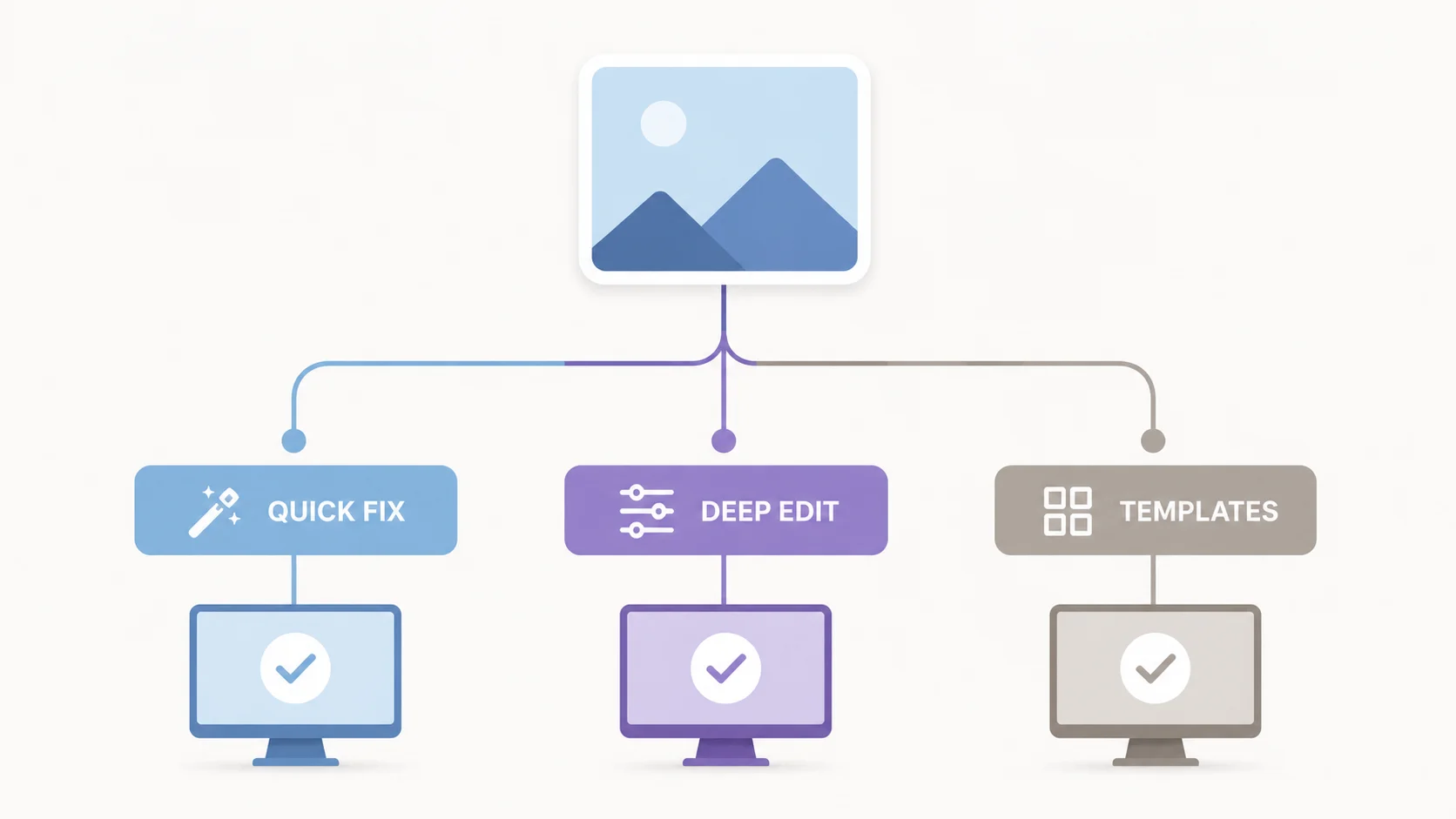
Edit in your browser, export clean
Crop, color, text, and filters. No watermark, no install, files stay on your device.
Try the ArtsFlick Photo Editor