PNG vs JPG vs WebP: Which Image Format Should You Use?
PNG vs JPG vs WebP is the quiet question behind every image you save, and most people answer it by habit. It feels technical, but it comes down to three things: how the format compresses, whether it keeps transparency, and where the file needs to work. Get those right and the decision takes five seconds.
This guide gives you the five-second version and the reasons behind it. You’ll get real file-size numbers instead of “smaller” and “bigger”, a cheat sheet organized by task, and an honest section on what converting between formats actually does, because half the internet believes a conversion myth we should retire.
The real differences between the three formats
All three store a grid of pixels. What separates them is what they’re willing to throw away.
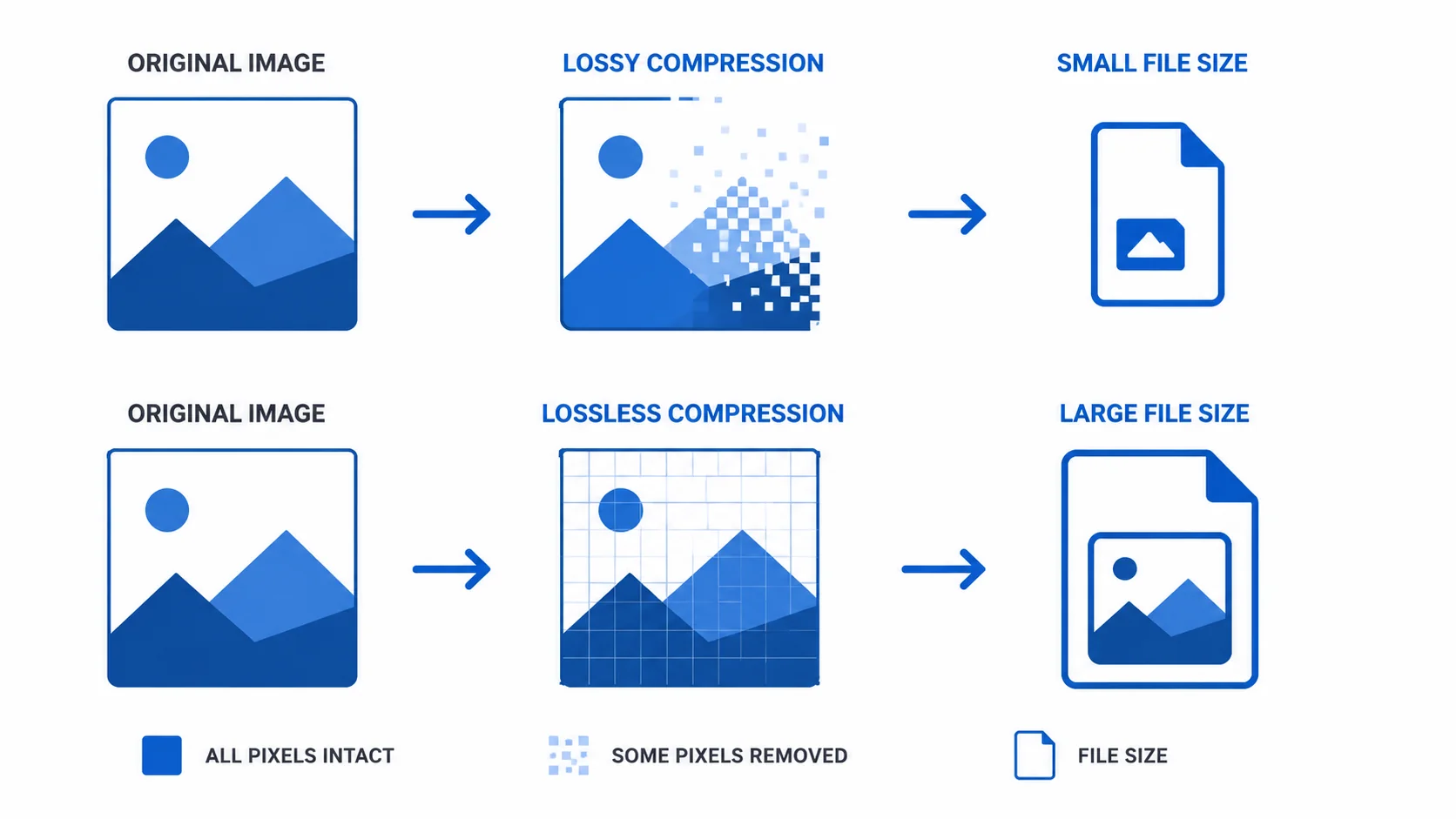
JPG uses lossy compression. It permanently discards image data your eye is least likely to miss, which is why a photo can shrink to a tenth of its raw size and still look fine. The cost: the discarded data never comes back, and each re-save discards a little more.
PNG is lossless. Every pixel survives exactly as saved, no matter how many times you open and re-save. It also supports transparency (an alpha channel), which JPG simply cannot do. The cost is size: for photos, a PNG can weigh five times more than a visually identical JPG.
WebP does both. It has a lossy mode that produces files roughly 25 to 34% smaller than an equivalent JPG, and a lossless mode about 26% smaller than an equivalent PNG, with transparency support in both. It was built for the web, and in 2026 every major browser renders it.
|
JPG |
PNG |
WebP |
|
|
Compression |
Lossy |
Lossless |
Lossy or lossless |
|
Transparency |
No |
Yes |
Yes |
|
Typical photo size |
Small |
Very large |
~25–34% smaller than JPG |
|
Quality after re-saves |
Degrades each save |
Never degrades |
Degrades in lossy mode only |
|
Works everywhere |
Yes, universally |
Yes, nearly |
All browsers; patchy in old apps |
|
Best at |
Photos for sharing |
Logos, screenshots, transparency |
Everything on a website |
When JPG wins: photos that need to work everywhere
JPG’s superpower isn’t quality or size. It’s that nothing rejects it. Every camera, phone, printer, marketplace, email client, and government upload form ever made accepts a JPG. When a photo leaves your control, compatibility beats every other consideration.
Use JPG for photographs you’re emailing, uploading to listings and forms, or sending to people whose software you don’t know. Export at 80 to 85% quality; in practice that’s the range where the file gets dramatically smaller before differences become easy to spot. For printing photos at home or a print shop, a high-quality JPG is also the safe default, and print shops in particular handle it without surprises.
Where JPG fails: anything with a transparent background (it will be filled with white), and sharp-edged graphics like logos or text, where its compression leaves visible smudging around the edges.
When PNG wins: precision and transparency
PNG is the format for pixels you can’t afford to lose. Logos, icons, screenshots, diagrams, UI elements, and any image containing text all keep perfectly crisp edges, because nothing is discarded.
Transparency is the other deciding factor. A logo that needs to sit on any background must be a PNG (or WebP, on the web). This is the single most common reason to convert a JPG logo to PNG: not for quality, but to remove and keep a transparent background after editing.
One print-specific detail most comparisons skip: professional print work happens in CMYK color, and PNG doesn’t support CMYK at all. For photo prints that rarely matters, labs convert on their end, but if a designer asks for print-ready files, they usually mean a TIFF or PDF, not a PNG. Worth asking before you export.
When WebP wins: basically your whole website
If the image lives on a web page, WebP should be your default in 2026. Same visible quality as JPG at roughly a quarter to a third less weight, transparency like PNG at a fraction of the size, and universal support across Chrome, Safari, Firefox, and Edge. Faster pages rank better and keep more visitors, so those percentages are not academic. We covered how oversized images slow pages in our guide to resizing images without losing quality; format choice is the other half of that equation.
WebP’s one real weakness is life outside the browser. Older desktop software, some email clients, and plenty of upload forms still reject it. That’s why the sensible workflow is: keep originals in a lossless format, publish WebP on your site, and export JPG when a file has to travel. MDN’s image file type guide is the reference worth bookmarking for the edge cases.
Decision cheat sheet: pick by task
When the png vs jpg vs webp question comes up mid-task, skip the theory: find your row, use that format, move on.
|
What you’re doing |
Use |
Why |
|
Photo on your website |
WebP |
Smallest file at equal quality |
|
Photo to email, upload, or share |
JPG |
Accepted everywhere, no exceptions |
|
Logo or icon with transparency |
PNG (WebP on web) |
Alpha channel + crisp edges |
|
Screenshot with text |
PNG |
Lossless keeps text sharp |
|
Image you’ll keep editing |
PNG |
No quality loss across re-saves |
|
Photo prints |
High-quality JPG |
Labs handle it natively |
|
Professional print design |
Ask for TIFF/PDF specs |
PNG lacks CMYK support |
|
Social media posts |
JPG or PNG |
Platforms recompress anyway; start clean |
What converting between formats really does (and doesn’t)
Here’s the myth worth retiring: converting a JPG to PNG does not improve its quality. The compression damage in a JPG happened when it was saved; a conversion just preserves that damage losslessly, artifacts and all. If a small or blurry image needs actual rescue, that’s an upscaling job, not a format change.
So why convert at all? Three legitimate reasons:
- To stop future damage. Converting a JPG you intend to edit repeatedly into PNG freezes its current quality. Every subsequent save is lossless, so the tenth version looks like the first.
- To gain transparency. Removing the background from a JPG product shot requires exporting to a format that supports it, which means converting the JPG to PNG or WebP.
- To gain compatibility or speed. WebP to JPG when an upload form refuses WebP; PNG or JPG to WebP when your page needs to load faster.
Going the other direction, PNG to JPG, is a real downgrade moment: transparency gets flattened onto a background color and the first lossy compression pass happens. Do it deliberately (for compatibility or size), keep the PNG original, and export at 80 to 85% quality.
Convert formats in your browser, free
PNG, WebP, and more to JPG in seconds. No signup, no watermark, originals stay on your device.
Try the ArtsFlick ConverterWhat about AVIF? The 2026 wrinkle
Comparisons written a few years ago end at WebP. In 2026 there’s a fourth name worth knowing. AVIF compresses noticeably better than WebP at the same visual quality, and browser support has caught up: all major browsers render it, with global coverage around 94 to 95%.
Should you switch? For most people, not yet as a default. AVIF encoding is slow (seconds per image instead of milliseconds), support outside browsers is thinner than WebP’s, and the last few percent of older browsers still need a fallback. Where it shines is high-traffic sites with an image pipeline that encodes once and serves millions: they use AVIF first with WebP as backup. For a portfolio, blog, or small business site, WebP remains the sweet spot of savings, speed, and simplicity. Check current support anytime on caniuse.com.
Mistakes to avoid
Most png vs jpg vs webp damage comes from a handful of repeatable habits. These are the ones we see most:
- Saving photos as PNG “for quality”. The gain is invisible; the 5x file size is not. Reserve PNG for graphics, screenshots, and transparency.
- Putting a JPG logo on a colored page. The white box around it is JPG’s missing transparency. The logo needs to be PNG, WebP, or ideally SVG.
- Converting JPG to PNG expecting sharper images. Quality lost to compression is gone. Conversion protects the future; it doesn’t repair the past.
- Re-saving JPGs over and over while editing. Each save compounds the loss. Convert to PNG before an editing session, export once at the end.
- Uploading multi-megabyte PNGs to your website. The single most common cause of slow pages we see. Convert to WebP (or at least JPG) and compress before upload.
- Sending WebP where it can’t go. Old software and strict upload forms still bounce it. When in doubt, JPG travels best.